Your trackpad
is now
bubble wrap.
Slide to find a bubble and press. It strains under your finger, then snaps.
macOS 14 or later · no account
Open, play, back.
Open
Click the notch, press Control Option P, or double-tap Command.
Play
The whole trackpad maps to the toy, corner to corner. Rest a finger and it's already there.
Back
Press P to get your pointer back, or Esc to close. You're right where you were.
Waiting on AI? Pop some bubbles.
Send your prompt, open the notch, and play until the answer's ready.
Or whenever you want a fidget.
15 toys for your restless hands. Three are free; unlock the other 12 with the Arcade Pass.





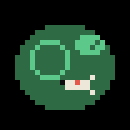
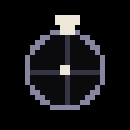
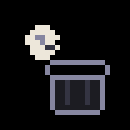
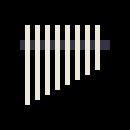
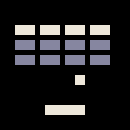
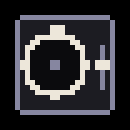
It opens from the notch.
Click it, or use a shortcut. It drops down over whatever you're doing, and folds away when you're done.
A better break than your phone.
Picking up your phone feels like a break. The research says it isn't much of one.
Fidget break
Twelve more in the Arcade Pass.
You can watch them here. You'll have to feel them on your Mac.
 ????????????????????????????????????
Questions
macOS 14 or later. Best on a MacBook with a notch; other displays get a stand-in notch at the top centre.
No, every toy works with a mouse too. The feel needs a Force Touch trackpad, and is strongest on a MacBook's own.
Open the DMG and double-click Install fidget. It installs the app and opens it for you. Input Monitoring is optional, only for the double-tap ⌘ shortcut; clicking the notch works without it.
12 Pass toys on 3 Macs per key. Settings → Arcade Pass → Deactivate this Mac frees a seat.
Recover it on Polar's customer page with the email you bought with.
Settings → Arcade Pass → Check for Updates opens this site, where the download is always the latest. Nothing updates in the background.
“With AI doing more of our work, I was tired of staring at the screen watching it think, so I built something to fidget with.”
Your next break, one click away.
macOS 14 or later · 3 toys free · 12 more with the Pass